According to a post by MG Siegler Google Apps is soon launching an off line version of calendar. To read his article click here.
Already launched the synchronization facility with MS Outlook recently - the off line feature may completely eliminate the need of an Outlook Calendar. Lets wait for this feature to be released and see what is in store there.

Showing posts with label Calendar. Show all posts
Showing posts with label Calendar. Show all posts
Saturday, March 15, 2008

Wednesday, March 12, 2008
Can I show a public holidays calendar on top of my own Calendar?
Yes you can do that. And the good news is not only one you can show multiple calendars at the same time. Cool! And you can assign your choice of color codes to each calendar. Wow! Here is how to do this:
Click on Settings (at the top right side of your calendar page) --> and select Calendar Tab. Here you will see of all your personal and selected public calendars.
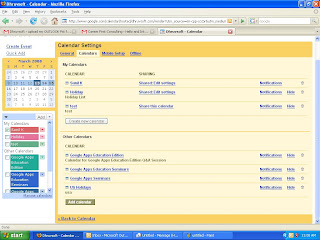
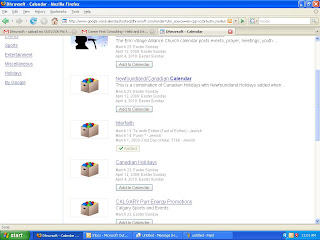
In Other Calendars section click on Add Calendar button. Now you will see all the public calendars. Here you can search for the desired calendar and from the search results select the Calendar you need and Add Calendar
Once added you can view two Calendars simultaneously by selecting the desired calendars from left side navigation bar:
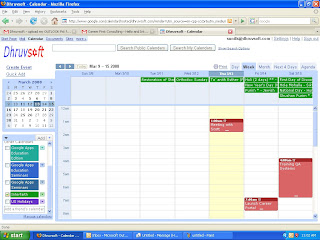
In the above image the public calendar is shown in Green and personal calendar in red color.
Click on Settings (at the top right side of your calendar page) --> and select Calendar Tab. Here you will see of all your personal and selected public calendars.

In Other Calendars section click on Add Calendar button. Now you will see all the public calendars. Here you can search for the desired calendar and from the search results select the Calendar you need and Add Calendar

Once added you can view two Calendars simultaneously by selecting the desired calendars from left side navigation bar:

In the above image the public calendar is shown in Green and personal calendar in red color.
Wednesday, March 5, 2008
Common questions: Calendar
I want my assistant to be able to keep the calendar updated for me.
You can share the calendar with her to make changes. You can share one or more calendars with specific users and specify the permissions for each one of them.
To share calendar click on settings, then click on calendars tab and edit the sharing for calendar you want to edit.
You can share the calendar with her to make changes. You can share one or more calendars with specific users and specify the permissions for each one of them.
To share calendar click on settings, then click on calendars tab and edit the sharing for calendar you want to edit.
Tuesday, March 4, 2008
Creating SMS Alerts for your Calender
One of the best feature that I like about Google Calender is ability to create SMS alerts for events. So even if I am on the move, I get alerts from my calender right in my mobile through a text message.
In fact I have created a calender for "Birthdays & Anniversaries" and have setup alerts from my mobile. Now, I never miss a birthday or anniversary and I have lot of happy friends and relatives who love me for that.
Setting up is quite easy and secure (so that you do not get alerts of other person's calendar). To register your mobile phone with your calendar, you need to obtain a verification code from Google by following these steps:
1. On your calendar page click on "settings" at the top page.
2. Now you have several tabs, just select the "Notifications" tab.
3. In the "Phone number" field enter your phone number. Remember to enter it correctly.
4. Select your carrier (mobile service provider) from the drop-down menu.
5. Click on the "Send Verification Code" button and wait for a text message to be sent to your phone.
6. Once you receive this message, enter the code you received in your text message into the "Verification code" box and click on the "Finish setup" button.
Cool! Now you are ready for SMS alerts to your mobile from your Google Apps Calender. On any of your calender entry if you select "Reminder" option and in the drop down there you see SMS / Mobile option. Just select and you are ready to get a reminder.
In fact I have created a calender for "Birthdays & Anniversaries" and have setup alerts from my mobile. Now, I never miss a birthday or anniversary and I have lot of happy friends and relatives who love me for that.
Setting up is quite easy and secure (so that you do not get alerts of other person's calendar). To register your mobile phone with your calendar, you need to obtain a verification code from Google by following these steps:
1. On your calendar page click on "settings" at the top page.
2. Now you have several tabs, just select the "Notifications" tab.
3. In the "Phone number" field enter your phone number. Remember to enter it correctly.
4. Select your carrier (mobile service provider) from the drop-down menu.
5. Click on the "Send Verification Code" button and wait for a text message to be sent to your phone.
6. Once you receive this message, enter the code you received in your text message into the "Verification code" box and click on the "Finish setup" button.
Cool! Now you are ready for SMS alerts to your mobile from your Google Apps Calender. On any of your calender entry if you select "Reminder" option and in the drop down there you see SMS / Mobile option. Just select and you are ready to get a reminder.
Subscribe to:
Posts (Atom)